 Owncast ahora soporta plugins personalizados.
Apple TV
Streaming device
airplayaplicacion-oficialappletvtvosiosipadosmacostelevisiónmirando
Owncasts para tvOS
RecomendadoUsa la aplicación nativa Owncasts para tvOS para navegar por el directorio de Owncast o conectarte directamente a tu propio servidor.
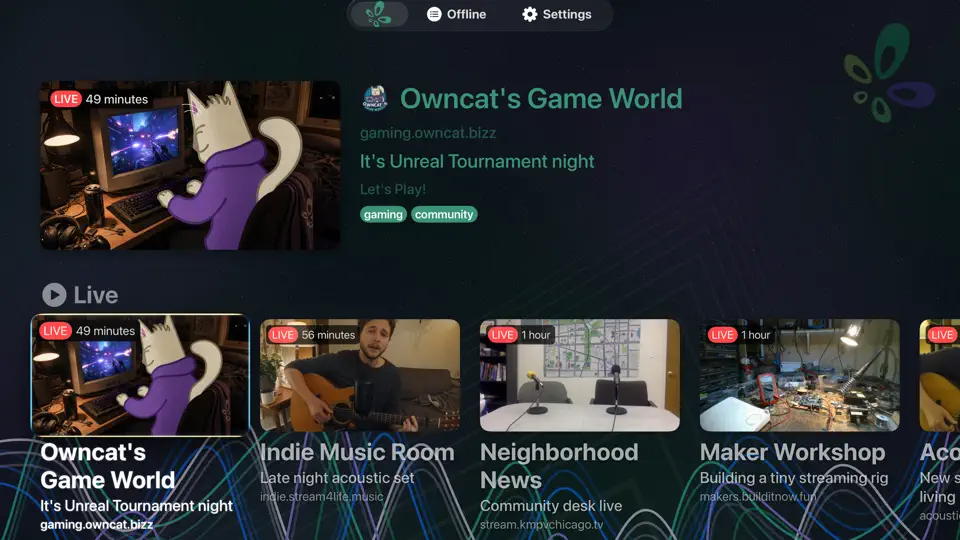
- Mejor experiencia si principalmente miras flujos de Owncast.
- Interfaz simple con navegación por el directorio integrada.
- No se requiere casting ni duplicación.

Mostrar instrucciones paso a paso
- Abre la App Store en tu Apple TV.
- Busca Owncasts e instala la aplicación.
- Lanza Owncasts para tvOS.
- Navega por el directorio o agrega la URL de tu servidor Owncast en la configuración.
- Selecciona un flujo y comienza a mirar.
VLC para tvOS
Usa VLC para abrir directamente tu URL de Owncast como un flujo de red.
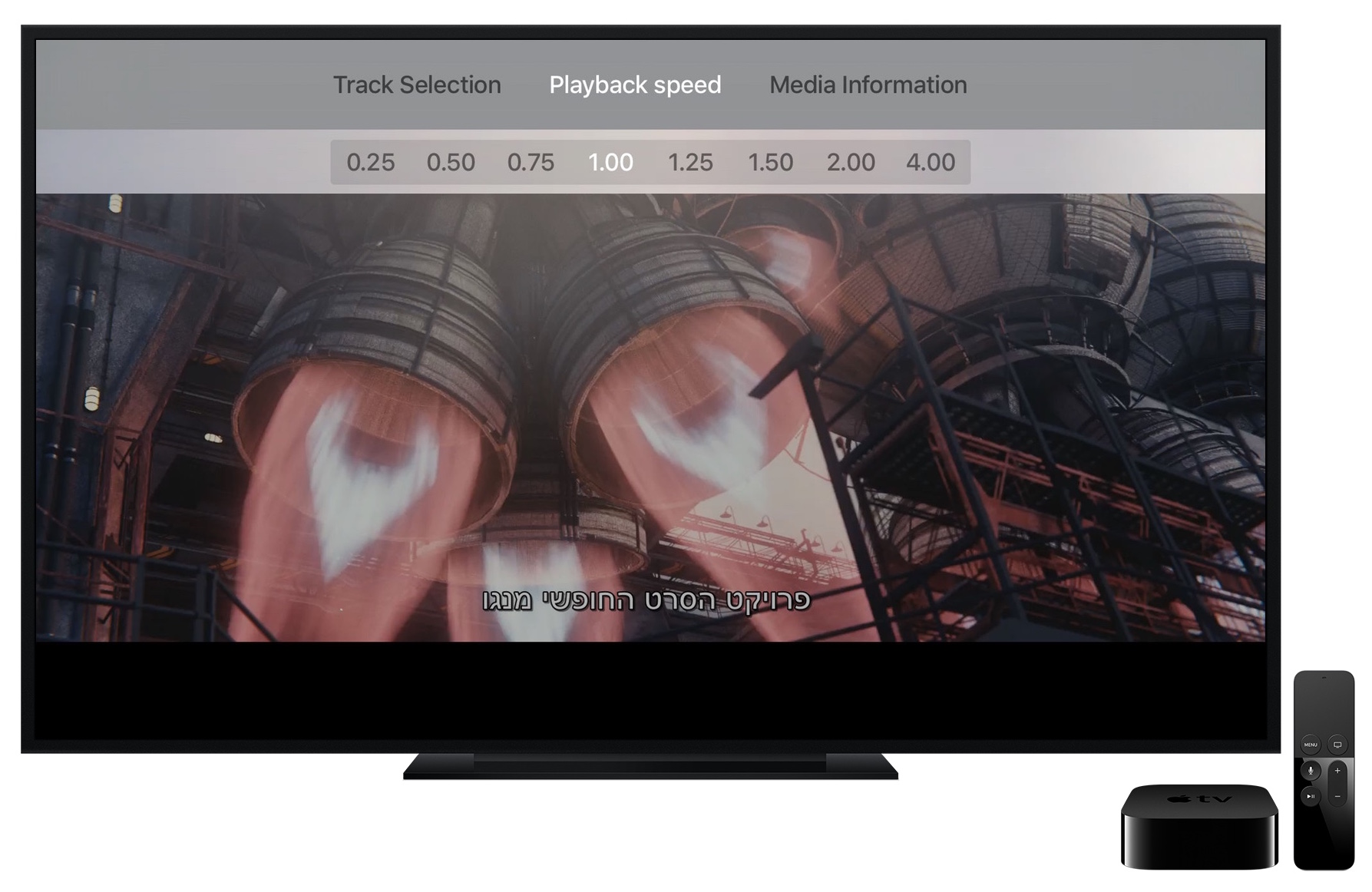
- Bueno si ya usas VLC en otros dispositivos.
- Funciona con la página principal de Owncast o URL HLS directa.
Mostrar instrucciones paso a paso
- Instala VLC desde la App Store de tvOS.
- Abre VLC y navega a Flujo de red.
- Type your Owncast URL into the Enter URL to play field. The direct HLS form is the most reliable, for example
https://watch.yourserver.tld/hls/stream.m3u8. - Submit the field to start playback. VLC keeps recent stream URLs on this screen so you can pick the stream again later.
AirPlay desde iPhone o iPad
Reproduce el flujo de Owncast en tu iPhone/iPad y AirPlay a tu Apple TV.
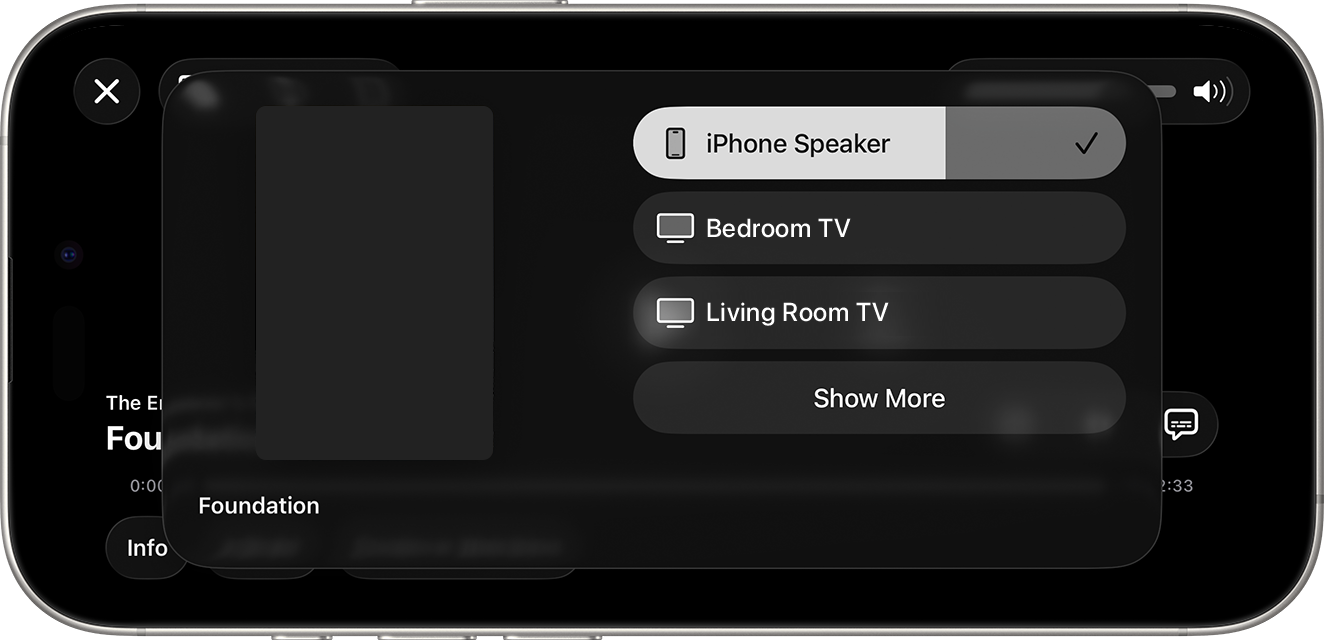
- Genial si principalmente miras en tu teléfono pero deseas enviarlo a la TV ocasionalmente.
- No se requieren aplicaciones adicionales de tvOS.
Mostrar instrucciones paso a paso
- Abre el flujo de Owncast en un navegador en iOS o iPadOS. Alternativamente, ábrelo usando la aplicación Owncasts para iOS.
- Comienza la reproducción.
- Abre Control Center y toca el ícono de AirPlay.
- Selecciona tu Apple TV.
AirPlay desde Mac
Reproduce el flujo de Owncast en tu Mac y duplica o AirPlay el video a Apple TV.
- Bueno si deseas usar tu portátil para transmitir a tu Apple TV.
- Funciona desde Safari o compartición de pantalla desde macOS.
Mostrar instrucciones paso a paso
- Abre el flujo de Owncast en Safari en tu Mac.
- Comienza la reproducción.
- Usa el ícono de Duplicación de pantalla / AirPlay en la barra de menú, o en el reproductor de video si está disponible.
- Selecciona tu Apple TV.
iPlayTV para tvOS
Usa iPlayTV para navegar por el directorio de Owncast a través de una lista de IPTV en tu Apple TV.
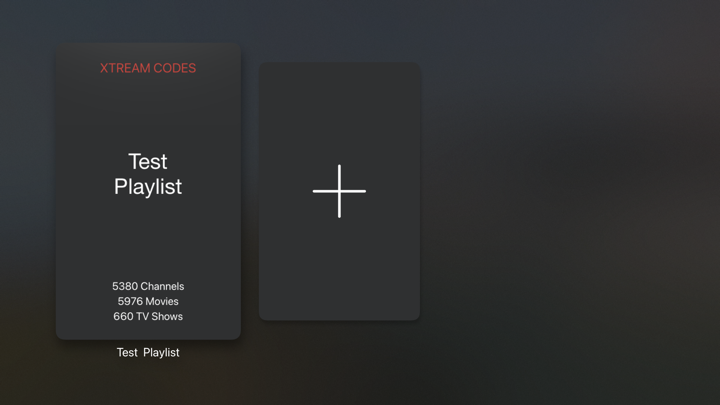
- Navega por todo el directorio de Owncast directamente en tu TV.
- Soporte de lista de reproducción IPTV para integración del directorio.
- Reload the playlist to pick up the streams that are live now.
Mostrar instrucciones paso a paso
- Instala iPlayTV desde la App Store de tvOS.
- Open iPlayTV and choose Add Playlist.
- Choose the remote M3U link option and enter the directory playlist URL:
https://owncast.directory/api/iptv - Give the playlist a name and save it.
- Open the playlist and browse the available Owncast streams.
Improve this page
See something missing or incorrect? Edit the English version of this page or help improve translations.
Contributors to this documentation