 Owncast はカスタムプラグインをサポートするようになりました。
ライブストリーム通知
一部のストリームは、ライブになるとオーディエンスに通知することで利益を得ることができます。
これは特定のサービスの推奨ではありませんが、一部のストリーマーが既存のコミュニティに統合するのに役立つかもしれません。
これを拡張して、他の宛先に自動通知を送信したい場合は、カスタムウェブフックを作成してください。
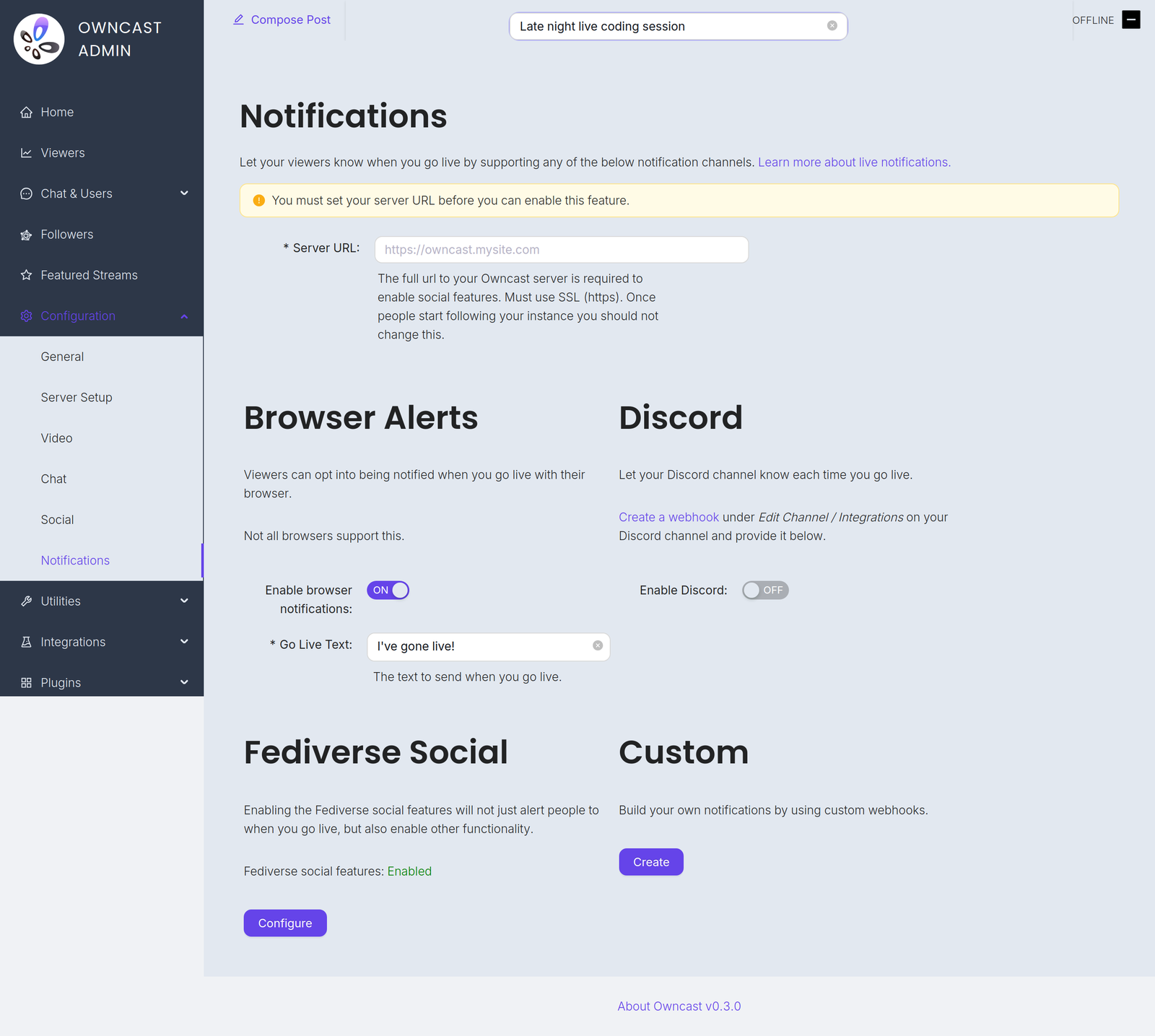
これらのチャネルは、管理者内の設定 → 通知で見つけることができます。
Before you can enable any of them you must set your Server URL under Configuration → General. Until you do, every notification channel on this page is disabled and the admin shows a warning with a field to set it.
Go-live notifications are not instant. Owncast waits 2 minutes after your stream starts before sending them, which avoids notifying people about accidental or very short streams. And if a notification already went out in the previous 10 minutes, for example because your stream briefly dropped and reconnected, a new one is not sent.
- ブラウザ通知
- ブラウザ拡張機能
- フェディバース
- ディスコード
- カスタム
ブラウザプッシュ通知を使用すると、視聴者はライブになるたびに通知を受け取るように選択できます。
To offer this, turn on Enable browser notifications and set the required Go Live Text, the message sent when you go live, up to 200 characters.
Browser push notifications are not supported for local servers. Your instance must be reachable at a public HTTPS address.
すべてのブラウザがこの機能をサポートするわけではなく、サポートしているブラウザでも異なる方法で処理される場合があります。 例えば、Braveでは、通知が有効な期間を選択する必要があります。 通知をアクティブに保つために、「永遠」を選択したいと思うかもしれません。
iOSでブラウザ通知を有効にする
iOSでストリームがライブになると通知を受け取るようリクエストするには、以下の手順に従ってください:
- Safariを開き、Owncastインスタンスに移動します。
- Tap the share button in Safari.
- Scroll down and tap "Add to Home Screen".
- Tap "Add".
- Give the link a name and tap the new icon on your home screen.
- Press the "Notify" button and enable notifications.
- プロンプトが表示されたら「許可」をタップします。
通知を任意の数のストリームから受け取るための別の提案された方法は、craftamapによるOwncastブラウザ拡張機能を使用することです。 これは、ChromeとFirefox用に利用可能です。
フェディバースのソーシャル機能には、あなたがライブになるときにフォロワーに通知するための組み込みサポートがあります。 詳細については、ドキュメントを訪れてください。
ストリームがライブになるときにディスコードチャンネルに通知できます。
- Visit Edit Channel / Integrations on your Discord channel and create a webhook. The Discord documentation has complete instructions.
- In the Owncast admin, turn on Enable Discord.
- Paste the webhook into the Webhook URL field.
- Set the Go Live Text, the message posted when you go live, up to 300 characters.
ウェブフックを使用して自分のカスタム通知を作成できます。 これにより、自分の統合を記述することで、任意のサービスに通知を送信できます。
Improve this page
See something missing or incorrect? Edit this page and improve the documentation for everyone.