 Owncast はカスタムプラグインをサポートするようになりました。
コディ
Other device
コディプラグインメディアセンターラズベリーパイHTPCテレビ視聴中
Owncast Kodiプラグイン
推奨公式のOwncastプラグインをインストールして、Kodi内で直接ディレクトリを閲覧します。
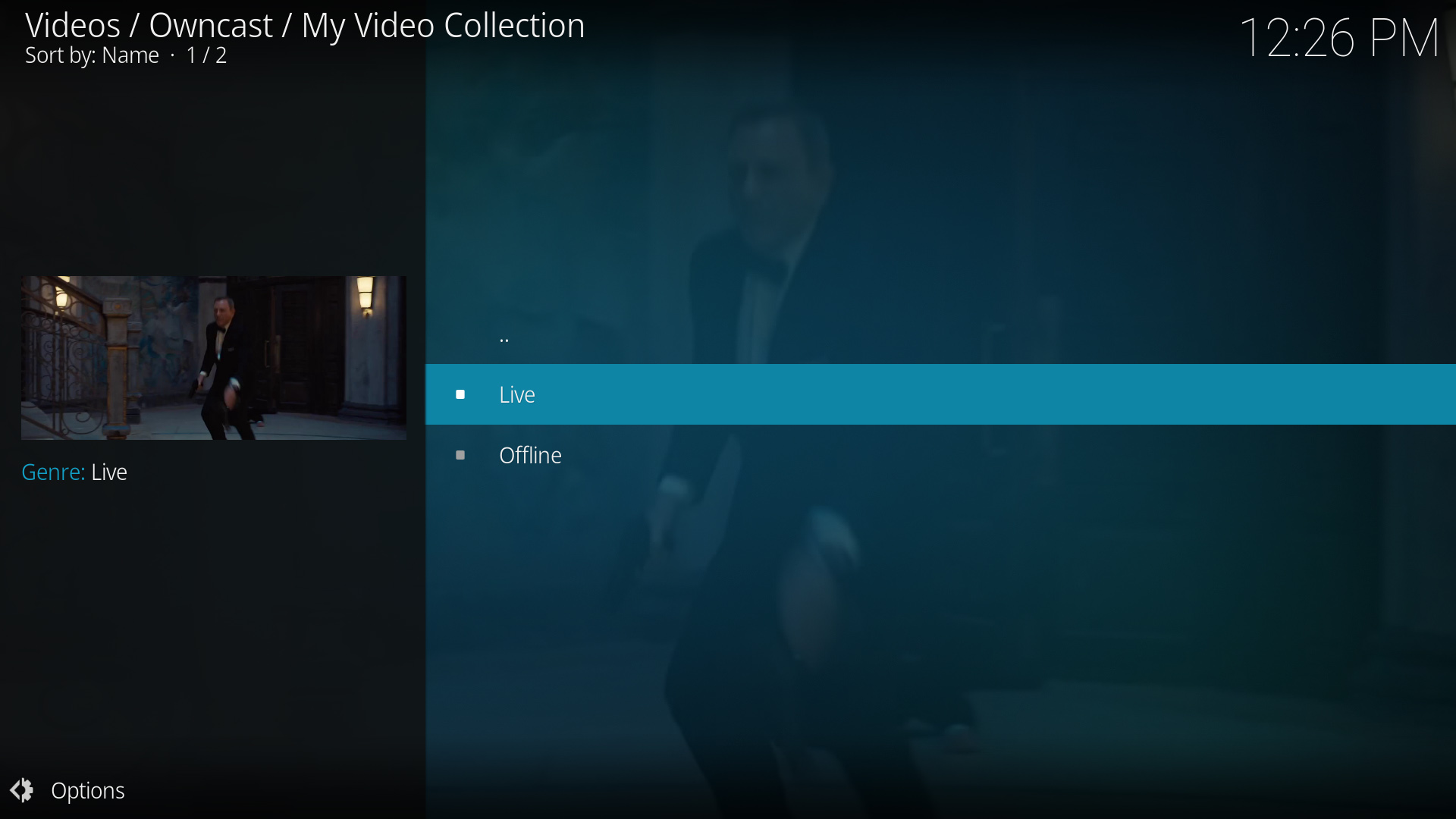
- Kodi内からOwncastの全ディレクトリを閲覧します。
- Owncast専用に構築されたプラグイン。
- Kodiのインターフェースとシームレスに統合されます。
ステップバイステップの手順を表示
- Owncast Kodi プラグイン の GitHub リポジトリにアクセスします。
- GitHubでプラグインのインストール手順に従ってください。
- Kodiのアドオンセクションからプラグインを起動します。
- ディレクトリから利用可能なOwncastのストリームを閲覧します。
- 視聴を開始するストリームを選択します。
直接URL再生
Play a single Owncast stream by pointing Kodi at a small .strm file that holds the stream URL.
- 任意のKodiインストールで動作します。
- 特定のOwncastサーバーへの直接アクセス。
- 追加のプラグインは必要ありません。
ステップバイステップの手順を表示
- Create a plain text file named
owncast.strmcontaining only your stream's HLS URL, for examplehttps://watch.owncast.online/hls/stream.m3u8. - Put the file in a folder Kodi can reach, either on the same machine or on a network share.
- In Kodi, go to Videos > Files and select Add videos....
- Choose Browse, select the folder holding
owncast.strm, and select OK. For a network share, use Add network location... first to set the protocol, server, and shared folder. - Open the source, select
owncast.strm, and choose Play.
Kodi's Add network location... dialog asks for a protocol, server, and shared folder, so it cannot take a full stream URL on its own. The .strm file is what makes the stream playable.
Improve this page
See something missing or incorrect? Edit this page and improve the documentation for everyone.
Contributors to this documentation