Notificações de transmissão ao vivo
Algumas transmissões se beneficiam ao anunciar para seu público quando vão ao vivo.
Isso não é uma recomendação de nenhum serviço específico, mas pode ajudar alguns streamers a integrar suas comunidades existentes.
Se você quiser expandir isso e enviar notificações automatizadas para outros destinos, crie um webhook.
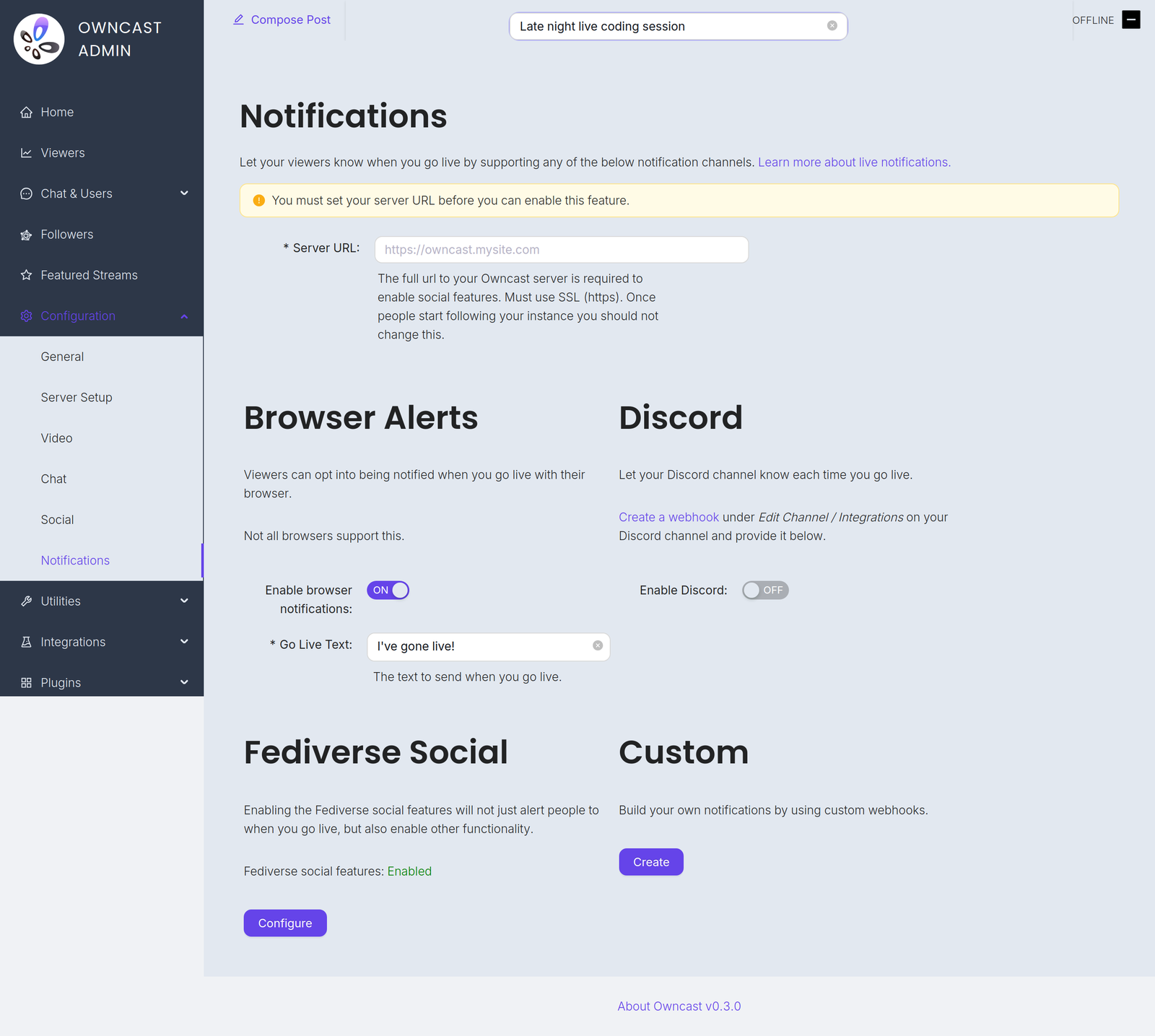
Você encontrará esses canais em Configuração → Notificações no admin.
Before you can enable any of them you must set your Server URL under Configuration → General. Until you do, every notification channel on this page is disabled and the admin shows a warning with a field to set it.
Go-live notifications are not instant. Owncast waits 2 minutes after your stream starts before sending them, which avoids notifying people about accidental or very short streams. And if a notification already went out in the previous 10 minutes, for example because your stream briefly dropped and reconnected, a new one is not sent.
- Notificações do navegador
- Extensão do navegador
- Fediverse
- Discord
- Personalizado
Usando notificações push do navegador, seus espectadores podem escolher ser notificados toda vez que você vai ao vivo.
To offer this, turn on Enable browser notifications and set the required Go Live Text, the message sent when you go live, up to 200 characters.
Browser push notifications are not supported for local servers. Your instance must be reachable at a public HTTPS address.
Nem todos os navegadores suportam esse recurso, e os navegadores que suportam podem lidar com isso de maneira diferente. O Brave, por exemplo, exige que você escolha a duração em que as notificações são válidas. Eles provavelmente vão querer selecionar "Para sempre" para manter a notificação ativa.
Ativando notificações do navegador no iOS
Você pode solicitar ser notificado quando uma transmissão for ao vivo no iOS seguindo estas etapas:
- Abra o Safari e navegue até sua instância do Owncast.
- Tap the share button in Safari.
- Scroll down and tap "Add to Home Screen".
- Tap "Add".
- Give the link a name and tap the new icon on your home screen.
- Press the "Notify" button and enable notifications.
- Toque em "Permitir" quando solicitado.
Outra forma sugerida de receber notificações do navegador de qualquer número de transmissões é usando a Extensão do Navegador Owncast por craftamap. Está disponível para Chrome e Firefox.
Os recursos sociais do Fediverse têm suporte incorporado para notificar seus seguidores quando você vai ao vivo. Visite a documentação para mais informações.
Você pode notificar um canal do Discord quando sua transmissão for ao vivo.
- Visit Edit Channel / Integrations on your Discord channel and create a webhook. The Discord documentation has complete instructions.
- In the Owncast admin, turn on Enable Discord.
- Paste the webhook into the Webhook URL field.
- Set the Go Live Text, the message posted when you go live, up to 300 characters.
Você pode criar suas próprias notificações personalizadas usando webhooks. Isso permite que você envie notificações para qualquer serviço escrevendo sua própria integração.
Improve this page
See something missing or incorrect? Edit this page and improve the documentation for everyone.