 Owncast agora suporta plugins customizados.
Apple TV
Streaming device
airplayaplicativo-oficialappletvtvosiosipadosmacostelevisãoassistindo
Owncasts para tvOS
RecomendadoUse o aplicativo Owncasts nativo para tvOS para navegar no diretório Owncast ou conectar-se diretamente ao seu próprio servidor.
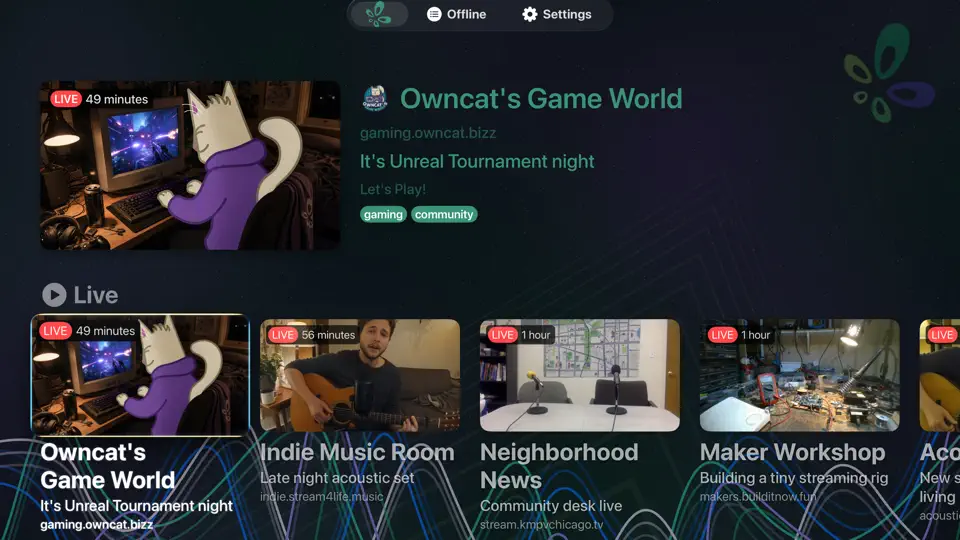
- Melhor experiência se você assiste principalmente a streams do Owncast.
- Interface simples com navegação pelo diretório embutida.
- Sem necessidade de casting ou espelhamento.

Mostrar instruções passo a passo
- Abra a App Store no seu Apple TV.
- Pesquise por Owncasts e instale o aplicativo.
- Inicie o Owncasts para tvOS.
- Navegue pelo diretório ou adicione a URL do seu servidor Owncast nas configurações.
- Selecione um stream e comece a assistir.
VLC para tvOS
Use o VLC para abrir sua URL Owncast diretamente como um stream de rede.
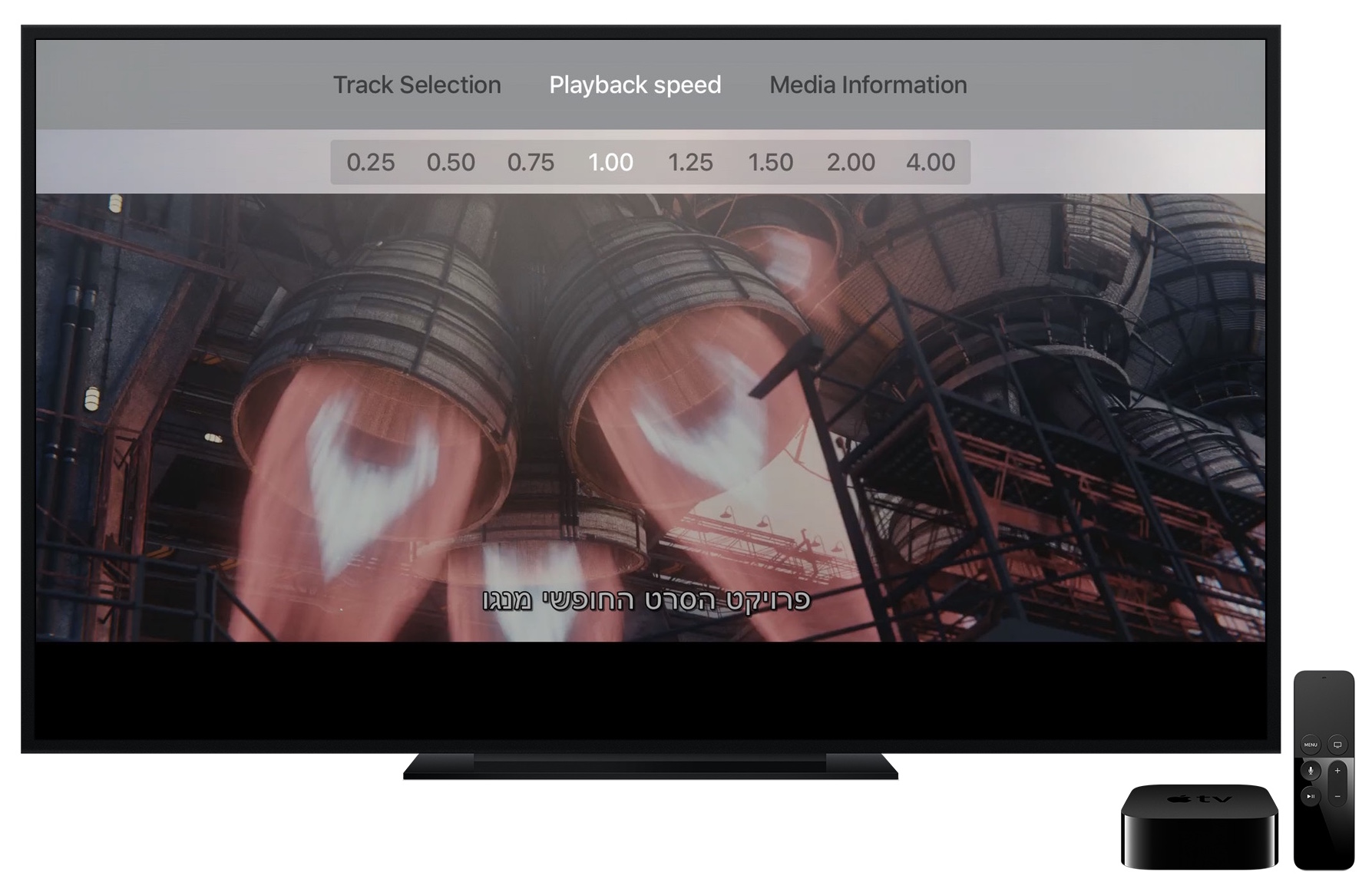
- Bom se você já usa o VLC em outros dispositivos.
- Funciona com a URL principal da página Owncast ou URL HLS direta.
Mostrar instruções passo a passo
- Instale o VLC na App Store do tvOS.
- Abra o VLC e navegue até Rede Stream.
- Type your Owncast URL into the Enter URL to play field. The direct HLS form is the most reliable, for example
https://watch.yourserver.tld/hls/stream.m3u8. - Submit the field to start playback. VLC keeps recent stream URLs on this screen so you can pick the stream again later.
AirPlay de iPhone ou iPad
Reproduza o stream Owncast no seu iPhone/iPad e AirPlay para sua Apple TV.
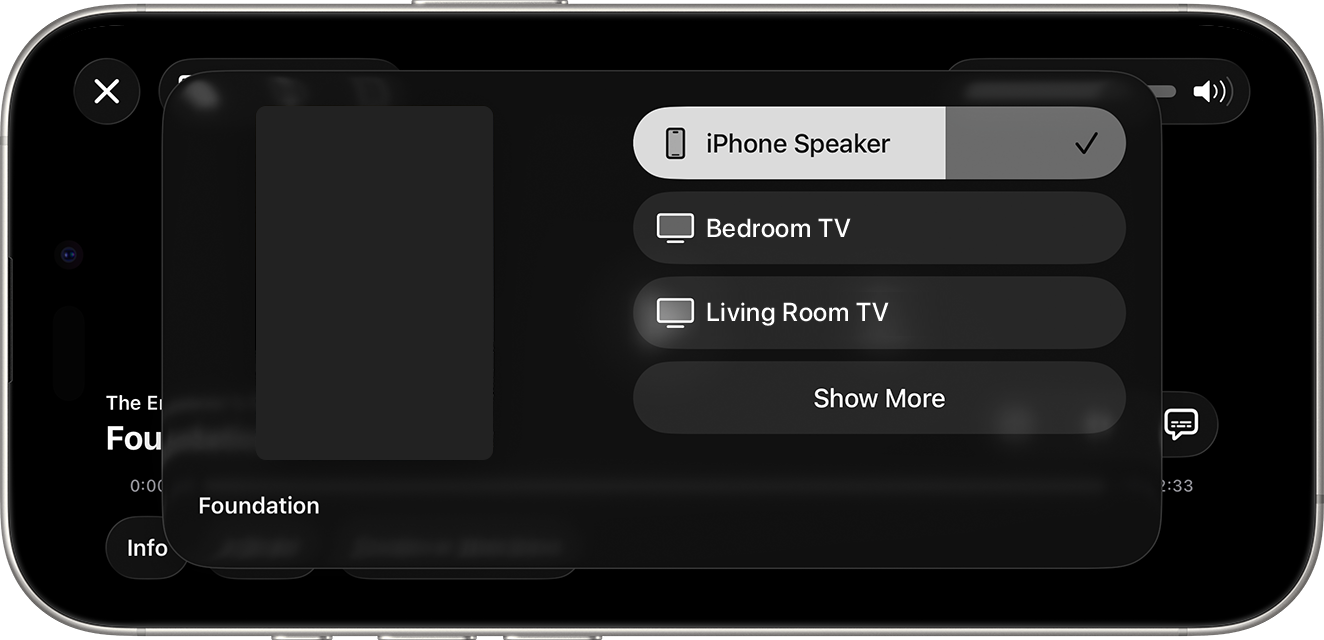
- Ótimo se você assiste principalmente no seu telefone, mas quer enviá-lo para a TV ocasionalmente.
- Sem aplicativos adicionais para tvOS necessários.
Mostrar instruções passo a passo
- Abra o stream Owncast em um navegador no iOS ou iPadOS. Alternativamente, abra usando o aplicativo Owncasts para iOS.
- Inicie a reprodução.
- Abra o Centro de Controle e toque no ícone do AirPlay.
- Selecione sua Apple TV.
AirPlay de Mac
Reproduza o stream Owncast no seu Mac e espelhe ou AirPlay o vídeo para a Apple TV.
- Bom se você quiser usar seu laptop para fazer stream para sua Apple TV.
- Funciona a partir do Safari ou compartilhamento de tela do macOS.
Mostrar instruções passo a passo
- Abra o stream Owncast no Safari no seu Mac.
- Inicie a reprodução.
- Use o ícone Espelhamento de tela / AirPlay na barra de menu ou no player de vídeo, se disponível.
- Selecione sua Apple TV.
iPlayTV para tvOS
Use o iPlayTV para navegar pelo diretório Owncast via lista IPTV na sua Apple TV.
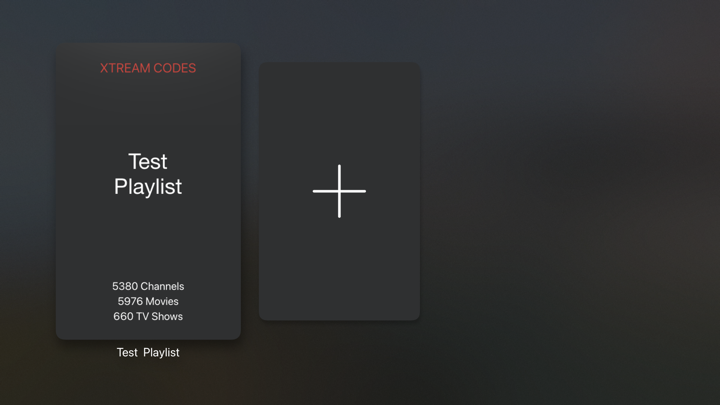
- Navegue por todo o diretório do Owncast diretamente na sua TV.
- Suporte a listas IPTV para integração de diretório.
- Reload the playlist to pick up the streams that are live now.
Mostrar instruções passo a passo
- Instale o iPlayTV da App Store do tvOS.
- Open iPlayTV and choose Add Playlist.
- Choose the remote M3U link option and enter the directory playlist URL:
https://owncast.directory/api/iptv - Give the playlist a name and save it.
- Open the playlist and browse the available Owncast streams.
Improve this page
See something missing or incorrect? Edit this page and improve the documentation for everyone.
Contributors to this documentation