 Owncast 现在支持自定义插件。
LG 智能电视 (WebOS)
Smart TV
lgwebossmart-tvm3uiptvtelevisionwatching
IPTV Playlist App
推荐Install an IPTV player from the LG Content Store and point it at the Owncast directory playlist.
- 在电视上直接浏览整个 Owncast 目录。
- webOS has no native M3U playlist support, so this needs a third-party player.
- Reload the playlist to pick up the streams that are live now.
显示分步说明
- Install an IPTV or M3U player from the LG Content Store. Availability varies by region and by TV model.
- Add a playlist using this URL:
https://owncast.directory/api/iptv. Make sure it starts withhttps. - Double check you typed it in correctly, then save the playlist.
- Reload or reopen the playlist to refresh the list of live streams.
- 选择你想观看的直播流。
Note: Players differ in how a playlist is added. Some take the URL on the TV, and others want you to upload the playlist through their own website keyed to your TV. Follow whichever method your chosen app documents.
直接输入 URL
Use the webOS Web browser app to open an Owncast stream directly on the TV.
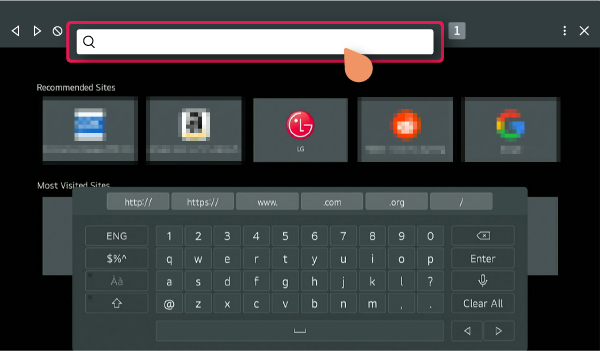
- webOS includes a Web browser app on the Home menu.
- 需要手动输入 URL。
- LG notes that browser functions are more limited than on a computer or phone.
显示分步说明
- Open Web browser from Home on your LG webOS TV.
- Enter your Owncast server URL in the address bar.
- 尝试在浏览器中直接播放该流。
Note: TV browsers are limited compared with a phone or computer, so web video playback may not work reliably.
Improve this page
See something missing or incorrect? Edit this page and improve the documentation for everyone.
Contributors to this documentation